Less Expensive Equipment Alone Won’t Take Down Chromebooks

I have been an Apple in education guy since the 1980s. The potential of the new NEO for that market immediately caught my attention. So many podcasts have speculated about the potential of the Neo in the marketplace and one of the participants on Macbreak Weekly changed my mind concerning the Neo as a Chromebook killer. She argued that the price point of the Neo or lower-end iPads is only part of what the school-based tech people consider. Apple or Microsoft has no viable alternative to Google Classroom and the structure and security issues addressed are worth a lot to school tech decision makers. 

How popular are different tech products in K12?

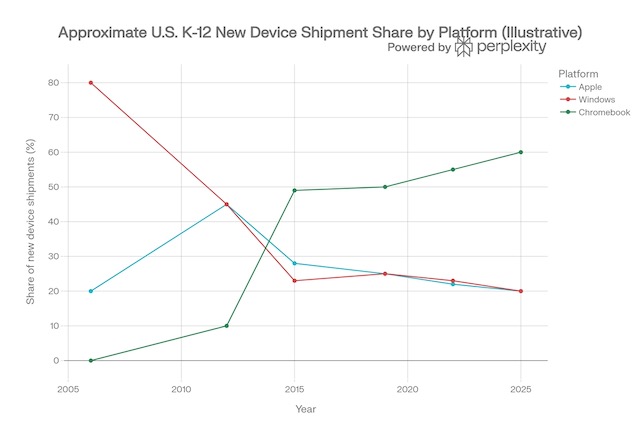
You might think providing data on the recent history of school purchases of Apple, Windows, and Chromebook devices would be simple. Some source must have found this topic to be of interest. I have tough expectations for what this would look like with Chromebooks showing a sharp rise in recent years. What I was less certain I understood was the comparative tracks of Apple and Windows equipment. I have been retired now for about a decade so I have spent only a little time in schools. I expected popularity comparisons would show Apple somewhere between Chromebook and Windows machines. 

There are no “official statistics,” and some of the most carefully acquired have value to businesses interested in the education market, and require you to purchase the reports (e.g., Futuresource). Data I could locate was inconsistent and no source fit my expectations. After multiple searches, I asked Perplexity to generate a graph for the 20 year period I wanted and that graph appears below. I did find similar general descriptions elsewhere to my surprise and the issue here is whether the new and less expensive Apple computer will change this trend. 
Why Chromebooks will likely continue the tech of choice?

So, Google’s Chromebooks have maintained a stranglehold on K-12 classrooms. While the Neo is a device that brings the prestige and power of macOS to a price point that schools can actually afford, the decisions those who make purchases depend on more than the cost of the equipment. 

The real reason Chromebooks will likely still be preferred isn’t just the lower price tag; it is the infrastructure of Google Classroom and the Google Workspace for Education ecosystem. Until Apple builds a direct, functional competitor to Google Classroom, the Neo is just a nice laptop in a room where everyone is already tied into a different system.

When a school district buys a large number of devices, often in the thousands, they are looking beyond a reasonable price point and hardware sophistication. Organizations also consider manageability and deployability – how to oversee how devices are used and how to set them up quickly and efficiently. Apple has always focused on individual users. When the machine assigned to an individual has an issue or selects one from a classroom card, each student simply signs in to the new machine, it is personalized, tabs, documents, and settings like the last time they connected. The design of Apple equipment maintains an individual’s priorities and content on that individual’s machine. 

The Google Classroom

Google Classroom was designed with an understanding of the school day and classroom tasks. It connects to Google’s online services – Google Drive, Calendar, and Meet and gives the teacher some level of immediate access to student accounts. Teachers have a way to distribute and grade assignments. Google Classroom allows a teacher to “make a copy for each student” with one click, see real-time progress on an essay, and provide instant feedback. The system works great because Google owns both the productivity suite (Docs/Sheets) and the management layer (Classroom).

Built for Collaboration

Google Docs was built for the web and for collaboration; it was built for twenty students to be in the same document at the same time without the system crashing or creating “conflicted copies.” Students can peer-edit, work on group slides, and share data in real-time. These capabilities can be accessed on the devices from other companies, but if classroom tasks are heavily dominated by tasks Google makes easy why add the complications of equipment that is not as easily integrated? 

The Cost Issue at the Level of the System

As I understand it, Google Classroom itself is generally provided at no additional cost to schools as part of Google Workspace for Education. The cost of Google Workspace depends on what schools want. There is a free tier for eligible institutions that provides the core tools such as Docs, Drive, Gmail, and Meet. Schools can also pay for other features that meet common needs, such as advanced security, analytics, admin controls, and additional teacher tools. I couldn’t find pricing details as the charge to the schools depends on the number of classrooms and teachers. 

Additional Comments

Teachers don’t choose platforms; districts do. Procurement decisions happen at the IT/admin level, not the classroom level. In considering Apple versus Microsoft in the business environment, the same issue seems to apply. In schools. Google won those relationships early and aggressively in the 2010s, and switching costs are now enormous — not technically, but now in terms of retraining staff and migrating years of curriculum materials. It seems to me Windows and Apple equipment will continue to have value in specific school applications but overcoming the inertia of a device and services suited to the most common tasks would be a massive challenge. If we get to AI on devices, perhaps things will change. 

Other companies have attempted to develop competing services. For example, Microsoft has Teams for Education. This product is regarded as capable, but teachers reportedly find Google Classroom much easier to use. 

Summary

Understanding why schools adopt a given type of tech hardware may not be as apparent as some may assume. This post argues that even given a similar price point other factors are important and Google has a lead when it comes to the basics of common classroom practice. 

Loading

Design learning experiences using generative activities – Layering

I have written multiple posts explaining generative activities and how such external activities encourage productive cognitive behaviors. Some of these posts describe specific classroom applications of individual generative tasks. In this post, I intend to describe how educators can apply some of these generative activities when they assign web content (pages or videos).

In many cases, online content assigned in K12 classrooms was not prepared as instructional content. For example, an article from Scientific American might offer information relevant to a specific standard addressed in sophomore biology. What activities might an instructor add to help learners understand, remember, and possibly apply concepts within this article. For example, a textbook would likely have activities inserted at the end of a chapter, added as boxes within content, or recommended in a teacher’s manual. Instructors often make additions as class assignments. What I am supporting here is similar to what educational researchers have described as adjunct questions. These were originally questions added within instructional texts or attached at the end of such texts. Embedded activities play different roles than even the same activities might play when delayed and isolated from the informative content. At the time of initial exposure, my argument is that there is a difference between information and instructional content and the connection of generative learning activities is a way to make this transition. 

A couple of years ago I became interested in a group of online services that were developed to improve the educational value of online content (web pages and videos). I developed my own way of describing what these services were developed to accomplish. Layering seemed a reasonable description because these services could not actually modify the content originally shared by content creators for ethical and legal reasons. What a layering service could do was take the feed from the creator’s service and add elements on top of that content. Elements were additions that could encourage important cognitive behaviors in a learner.

With a layering service, the content a learner encounters is a combination of the content from the content creator and additions layered on this content. Two sources and servers are involved. From the perspective of a designer, a layering service works by accepting the URL for a web page or video from the designer and then allows the designer to add elements that appear within or on top of the content from the designated source. The layering service sends this combination to the learner and this does not change the original document and still downloads the original from the server each time the combination of original and layered content is requested by a user. Ads still appear and the content server still records the download to give the creator credit. The layering service generates a link provided to learners and recreates the composite of content and designer additions each time a learner uses that link. 

Questions are my favorite example of an external activity that can be added to encourage a variety of important thinking (internal) behaviors. For example, if you want a learner to link a new concept to everyday experiences the concept is useful in understanding, you might ask the learner to provide examples that show the application of the concept. Many learners may do this without the question, but the question increases the likelihood more learners will work to identify such connections with their existing experiences. Those who think about instruction in this way may describe what they are doing as designing instruction. I offer an extended description of generative activity in a previous post. 

Depending on the specific service, the elements that layering services I am aware of include annotations, highlighting, questions, and discussion prompts. Annotations could include additional material such as examples, translations, or instructions. Questions could be open-ended or multiple-choice. A few of these elements could also be added by the learner (highlights and annotations) so elements provided to the designer could be used to encourage specific use of the elements available to students.

My personal interest in promoting layering services is intended to encourage the use of services that allow educators, educational content designers, and learners to work with this content to provide more effective learning resources and more generative learning experiences. In addition, content creators have a right to assume the server used by the content creator will be contacted each time content is requested and inclusions such as ads are included. The expectations of the content creator are not ignored when using a layering service.

I have identified several services that meet my definition of a layering service. Here, I will describe one service focused on web pages and one that focused on video. Other examples can be explored from the page linked above and I assume others exist that I have not identified. Services are constantly being updated, but I have just worked with the two examples I describe here and this information should be current as of the uploading of this post.

Insert Learning

Insert Learning is my best example of the services promoted here. I say this because it offers the most generative options and the generative options are part of an environment allowing an educator to both create multiple lessons, assign these lessons to members of multiple classes, and record data on student completion of some of the types of activity involved in individual lessons. 

The following image should give you some idea how this works. Down the left border of the image, you see a menu of icons allowing the designer to select highlight, note, question, and discussion. Highlight and note work as one probably expects. When the icon is selected text can be highlighted by the designer or learner. The note icon adds what appear as Postit notes allowing the inclusion of text, links, images, video, and whatever else works as an embed. The question icon adds questions either multiple choice as appears in the image or open-ended. The discussion icon appears very much like an open-ended question but accumulates and displays responses from multiple learners to a prompt. 

As I said, Insert Learning differentiates itself from many of the other services because the layering component is part of a system that allows the assignment of lessons to individual students organized as classes and also collects responses to questions by lesson and student. The following image shows a couple of responses to an open-ended question. I used Insert Learning in a graduate course I taught in Instructional Design. I made use of several of the tools I presented to students even when the most common use would be in K-12. This image shows how responses to questions would appear in the Grade Book. I could assign a score to a response and this score would then be visible to the student submitting a given response. 

It has been a few years since I used Insert Learning. When I did, I paid $8 a month. I see the price has now increased to $20 a month or $100 for the year. 

EdPuzzle 

EdPuzzle is a service for adding questions and notes to videos. It includes a system for adding these elements, assigning these videos to students, and saving student responses to questions. The following images are small to allow them to be inserted in this post. In the following image, the red box on the right allows the selection of the element to be added – MC question, open-ended question, and note. The timeline underneath the video (middle) is also enclosed in a red box. As the designer watches the video, clicking one of these buttons stops the video and allows the selected addition to be included. A dot appears below the timeline to indicate where an element has been added. A learner can either play the video which will stop for a response when one of these inclusions is reached or select one of the dots to respond. The second image shows the dialog box used to add an open-ended question. 

In the video I used in this example, I created a demonstration using Python to run LOGO commands and saved the video to YouTube. Again, this was a demonstration used in a graduate edtech course. Early in the video, I showed and explained the LOGO code. The video then showed the result of running this program.

When using EdPuzzle with this video, I inserted a note asking students to take a pencil and sheet of paper to draw what the LOGO program would create. Near the end of the video, I inserted an open-ended question asking that students explain how Papert’s notion of computational understanding would provide a different way of thinking about the traditional definition of circle (i.e., a plane closed figure with points equidistant from a point). 

I used the free version of EdPuzzle because I only assigned students to a few examples to experience what the service provided. You can do a lot with this service at no cost. The pro-level price is $13.50 per month. EdPuzzle Pricing 

Summary these two examples demonstrate the use of layering services to add generative activities to a web page and a web video. There are similar services available from other companies that generate similar student experiences. The value in such services is the opportunity to design learning experiences containing activities likely to improve understanding and retention.

Loading