Applying AI to Discuss Your Own Content

I have moved past the initial stage of awe in connection with access to large language models such as ChatGPT and after considerable exploration have begun to focus on how I might find value in what these systems can provide. I presently use AI tools to support the research I do to inform my writing – blog posts such as this. I have found that I feel uncomfortable trusting a tool like ChatGPT when I simply prompt it to provide me information. There are simply too many situations in which it generates replies that sound good, but are fabrications when checked. 

The one task most trustworthy requires that I focus the AI on a source of content I control and can use to check if something seems off. In this post, I will identify three such tools and explain a little of how you might also find these tools helpful.

ChatPDF

As the name implies, ChatPDF allows a user to interact with the content of a designated PDF. Much of the content I personally review consists of scientific journal articles available to me as PDFs from my university library. This has been the case now for many years and I have a collection of hundreds of such files I have read, highlighted, and annotated. The link I provide above explains how ChatPDF allows me to explore the content of content in such files. Because I read and annotate such files anyway, I actually don’t interact with journal articles in this way very often. The link I have provided describes the use of ChatPDF as a tutor applied to a textbook chapter. The intent of the description was to describe multiple ways in which ChatPDF could benefit a learner trying to understand and store important ideas from a document.

The other two examples here describe AI tools available to allow a user to interact with collections of notes. One tool works with notes saved in Obsidian and the second with notes in Mem.AI. These are digital tools for storing and organizing personal notes and digital content. The tools are designed for the organization and exploration of such notes, but as AI has become available new ways to make use of what can become large collections of information can also be applied. 

Smart Chat Obsidian Plugin

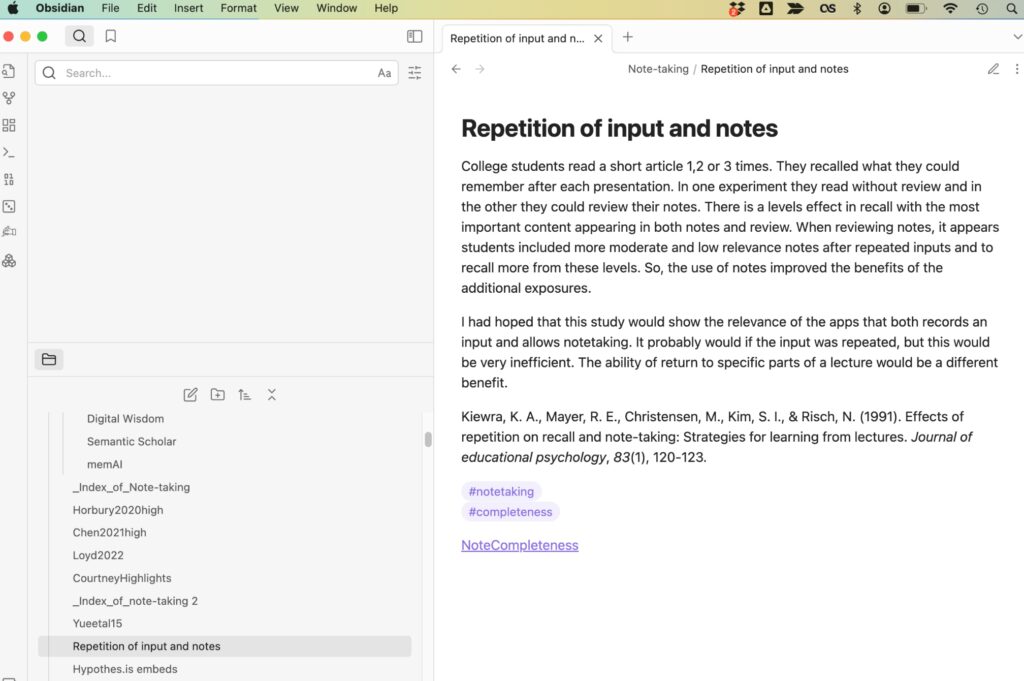
I have prepared a video to offer some idea of how Smart Chat prompts can be applied to the content stored in Obsidian. If you are unfamiliar with Obsidian, the video also offers a glimpse of Obsidian itself. One point I think is important Obsidian and differentiates it from Mem.AI is the way it stores content. Obsidian stores content as individual text files which include content as text and what is called markdown. Markdown is a simple set of tags that allow a user to establish links, tags, and text embellishments such as bolding, size, etc. The benefit is the independence of the files from any specific tool. So, if Obsidian was to go away, you would still have a collection of documents with your information you could salvage. In contrast, Mem.AI stores content in what I think of a database in the cloud. There are ways to export your content, but I find value in knowing I have my content on my computer in a format I can access if necessary.

The Smart Chat plugin requires that you have an Open.Ai account and add some money to cover the cost of your AI activity. I don’t consider the investment that large and have been contributing $5 a month which has covered the cost of my activity.

Mem.AI

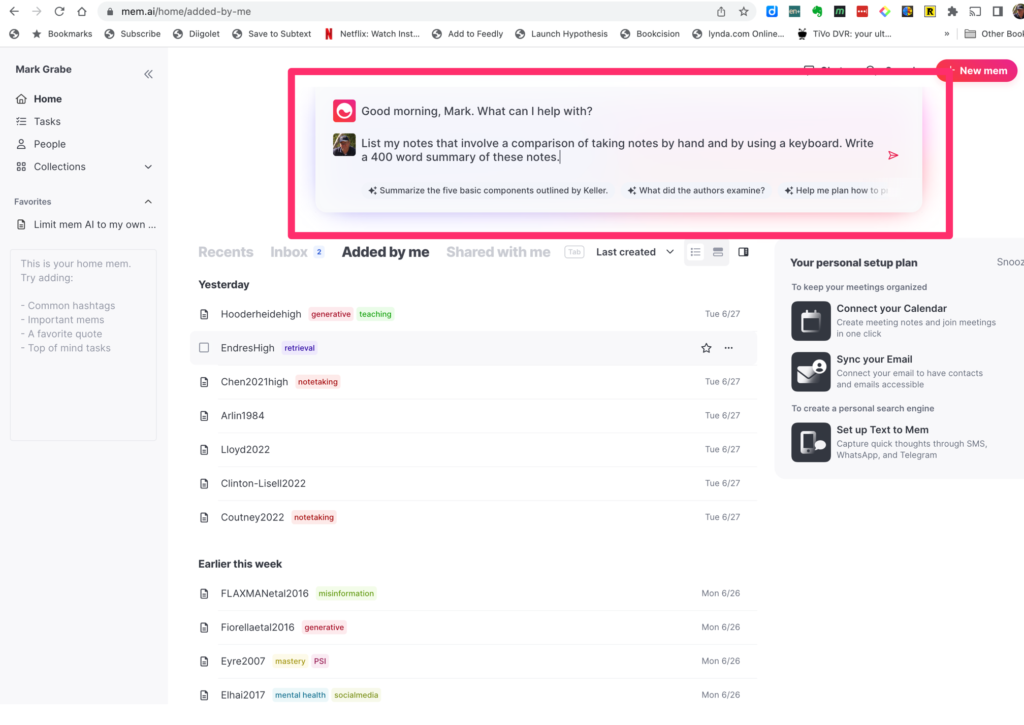
This image shows the home screen for Mem.AI. At the top of the screen, you can see the AI prompt window. I pay $10 a month for MEM.AI, but the AI feature is included. The following prompt (same as I used for the Smart Chat plugin in Obsidian) generated the following response. The content of my two note systems is similar, but not completely identical. You see some differences in the content that was generated.

Prompt

List my notes that involve a comparison of taking notes by hand and by using a keyboard. Write a 400 word summary of these notes.

Response

Based on your knowledge base, there are two notes that involve a comparison of taking notes by hand and using a keyboard:

  1. Horbury2021: This study compared the performance of 10 and 11-year-olds taking notes by hand or using a computer. The study found that conceptual understanding was superior when taking notes by hand. The authors speculated that keyboarding may have produced greater cognitive load, especially for children who may have less experience in keyboarding.
  2. Writing a paper step by step: This note mentions a study by Mueller and Oppenheimer (2014) that found no difference in terms of the number of facts students were able to remember whether they took notes by hand or by typing them into their laptops. However, in terms of understanding the content of the lecture, the students who took their notes by hand performed much better.

Here’s a 400-word summary of these notes:

The method of note-taking, whether by hand or keyboard, can significantly impact a student’s understanding and recall of the material. A study by Horbury (2021) compared the performance of 10 and 11-year-olds taking notes by hand or using a computer. The study found that students had a superior conceptual understanding when taking notes by hand. The authors speculated that keyboarding may have produced greater cognitive load, especially for children who may have less experience in keyboarding. This suggests that the physical act of writing might help students process and understand the information better.

On the other hand, a study by Mueller and Oppenheimer (2014) found no difference in terms of the number of facts students were able to remember whether they took notes by hand or by typing them into their laptops. However, in terms of understanding the content of the lecture, the students who took their notes by hand performed much better. This suggests that while the amount of content stored may not significantly differ between handwriting and keyboarding, the process of handwriting might lead to a deeper understanding of the content.

These findings have several implications for educational practices. Given that handwriting seems to lead to a deeper understanding of the content, educators might want to encourage students to take notes by hand, especially during complex lectures or discussions. However, it’s also important to remember that what works best might vary from student to student. Personalization of learning strategies, taking into account individual strengths and preferences, could also be a valuable approach.

In conclusion, while technology has its place in the classroom, these findings suggest it should not completely replace traditional methods. A balance between digital and analog methods could be the key to effective learning. Furthermore, students could benefit from explicit instruction on effective note-taking strategies, such as focusing on understanding over verbatim transcription. The cognitive load of keyboarding for younger students or those less familiar with typing should also be considered when deciding on note-taking methods.

Loading

Sharing my MEMEX content

Social bookmarking is a method of saving, organizing, and sharing web pages or online resources that you find useful or interesting. It allows users to store bookmarks or links to web pages on a social bookmarking website, rather than saving them in their web browser’s bookmarking tool.

The process typically involves creating an account on a social bookmarking site and then adding bookmarks by submitting the URL of a webpage along with a title, description, and relevant tags or keywords. These bookmarks are usually public and can be viewed and accessed by other users of the social bookmarking site.

One of the key features of social bookmarking is the ability to discover and explore content based on the recommendations and interests of other users. Users can browse through popular bookmarks, search for specific topics or tags, and subscribe to the bookmarks of other users whose interests align with their own.

Social bookmarking can be a valuable tool for organizing and managing online resources, as it provides a centralized platform for storing and accessing bookmarks from any device with an internet connection. It also enables collaboration and knowledge sharing, as users can follow each other, comment on bookmarks, and engage in discussions around specific topics.

I use several social bookmarking services and this post concerns MEMEX. This service offers some unique capabilities not available in what I would describe as first-generation services (e.g., Diigo). Memex (Memex garden for desktop and Memex Go for tablet) is really designed for collaboration. Wnat I mean here is that individuals share back and forth with other members of a team. Among the shared features when used in this way is discussion/commenting. I don’t really want things to work that way when sharing with others I don’t know because I don’t want to have to moderate comments. I simply want to make the resources I have generated available.

Memex provides a way for me to create what the service refers to as Spaces that are categories of resources I have created. I can share access that is read only. Others can explore the resources within a space, use AI to generate summaries of the resources to see if further investigation might be useful, and use the link to move to the original source. Memex should allow my personal highlights and annotations to be shared as well, but I would have had to indicate that I wanted each individual highlight or annotation to be public as each was generated. The default is private and my collection is too large to make the thousands of such existing additions public as this point. New additions to this collection will include public annotations,

Here is a page that contains links to the Spaces I have generated to this point. As already stated Memex is really designed for a different model of sharing and sharing read-only content is not the way developers imagined the service being used.

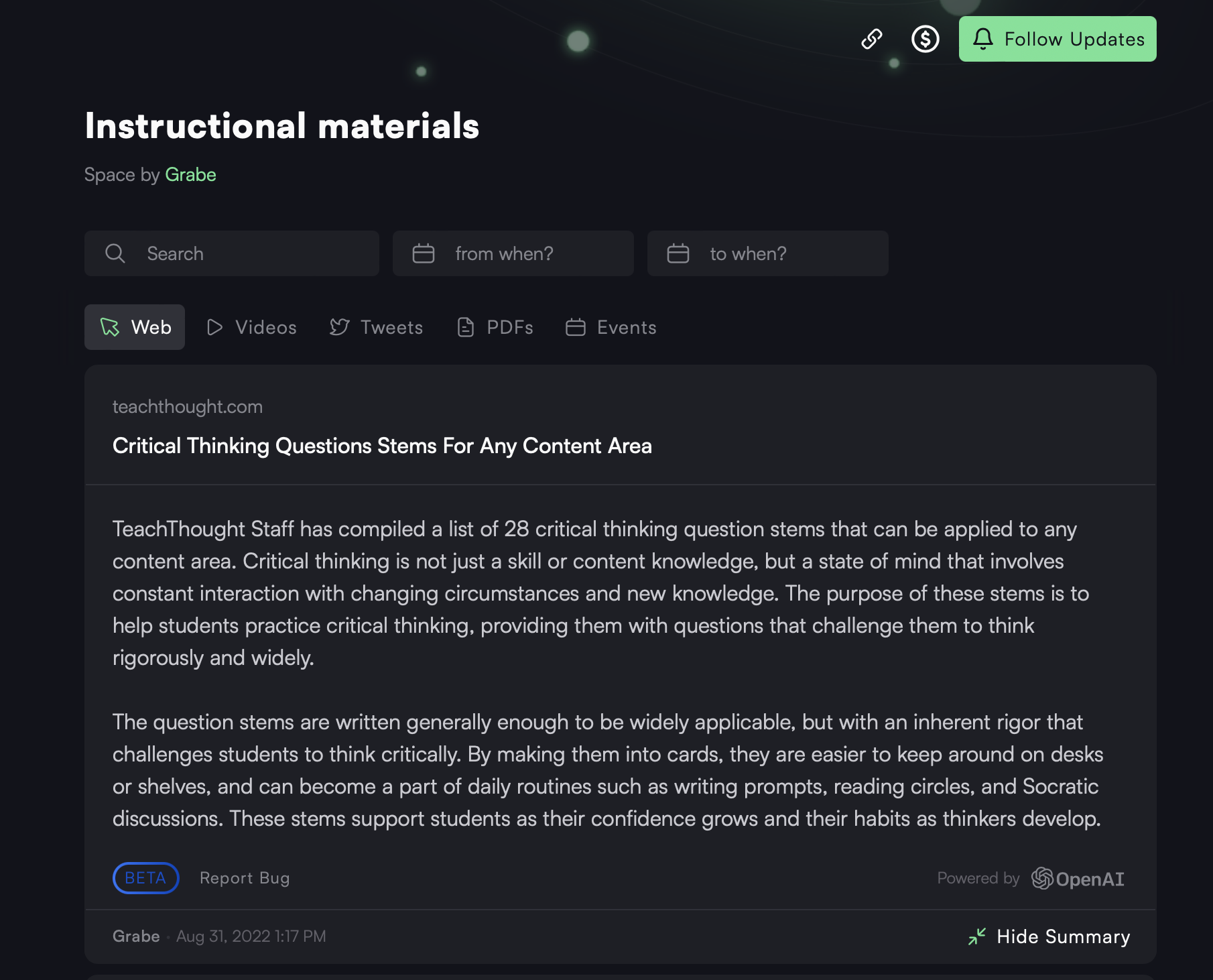
The content within a Space appears as shown below. I have applied the AI summarization tool to generate a summary for the first bookmark (Critical thinking stems ….) filed as part of the space Instructional materials. The idea is that a user would generate summaries of articles that generate interest based on the article titles and then follow up by access the articles that seem useful.

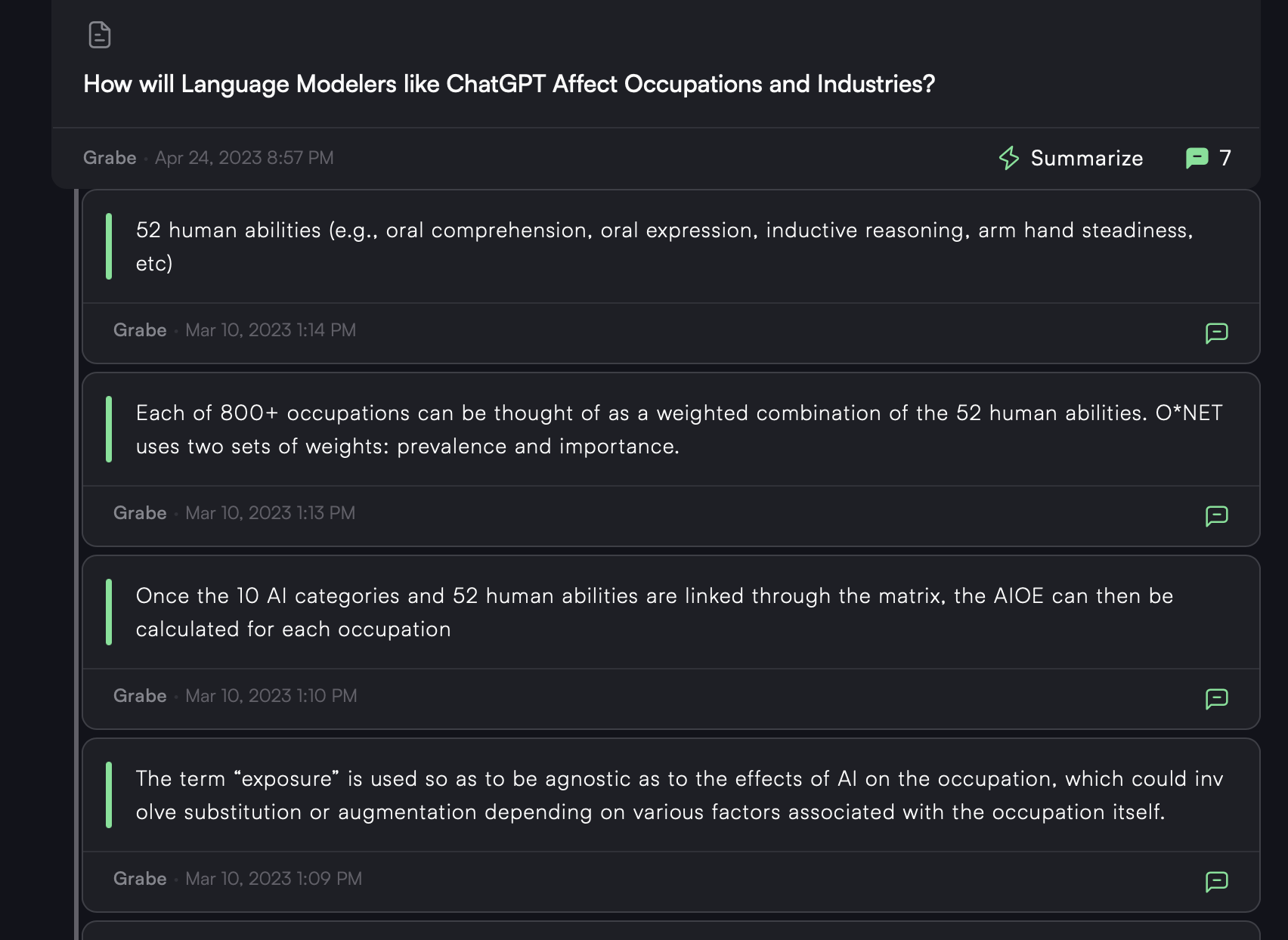
The highlights I generated for a different article are accessed with a different icon and offer a different way to make the decision to access the full article.

In summary, what I hope to provide here is a way to learn something about this social bookmarking tool and to take advantage of the time I have invested in using this system to accumulate online resources I have found useful. Page that links to individual Spaces.

Loading

The AI in Mem AI

I have been using Mem AI as a smart notetaking system and as an alternative to Obsidian. This post demonstrates the present AI capabilities which focus on the content I have added, Mem AI proposes it has differentiated itself from competing products such as Obsidian because the AI capabilities are intended as an alternative to personally generated links among notes.

The summary generated made sense at the beginning and then drifted into other content that did not seem related to the directions I gave.

Here is the summary generated by the app and shared.

Loading

Mem Note Taking

I don’t know if the time has come for specialized note-taking tools for students, but some of the emerging capabilities used in these tools (e.g., AI) point to important future opportunities. My comments on these services in other posts have mostly focused on the long-term advantages of developing a large store of information that can be repeatedly examined to address immediate needs. There is no reason that this capability could not be an opportunity for students of any age, but younger students tend to be more focused on the next assessment challenge. So the adoption of the type of capability I describe here will likely move over time from grad students to college students to secondary students.

The impetus for this post came from a post I read on the Mem site. This post explained how Mem could be used as a note-taking tool for college students. I have been a Mem user for some time and thought I would create a post on this same topic. A couple of points first. I use the Mem X version which costs me $8 a month for the annual plan. I made this investment because I was interested in exploring the AI capabilities. There is a free version without this capability and reduced prices for students. It makes sense to start with the free version before going all in.

It occurred to me that students may be hesitant to trust an online service that is unfamiliar for their notes. I think it far more likely students would lose a notebook than lose access to their online notes. Students who take notes using a more familiar application can easily continue to do so and then copy and paste their notes into Mem. Mem does offer input and export capabilities so there is no permanent commitment if having your notes locked into a system outside your own computer is a concern.

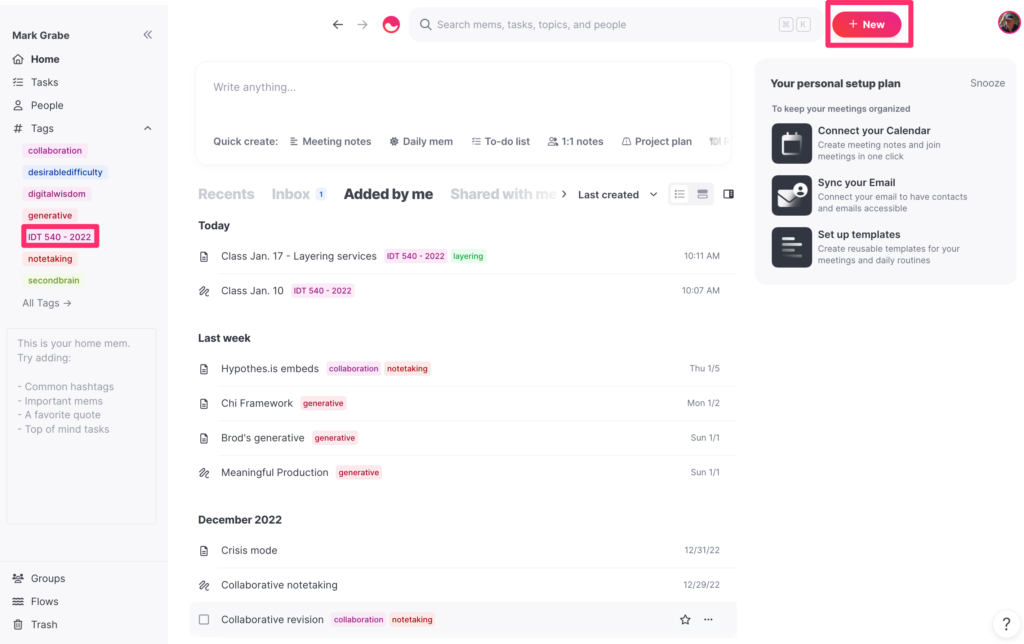
I have tried to decide how to explain the note-taking method that makes sense for this service in an efficient manner. I am ignoring a description of downloading Mem and an overview of the service and will begin with what to do with a blank note (the create a note button appears in the upper right-hand corner of the following image).

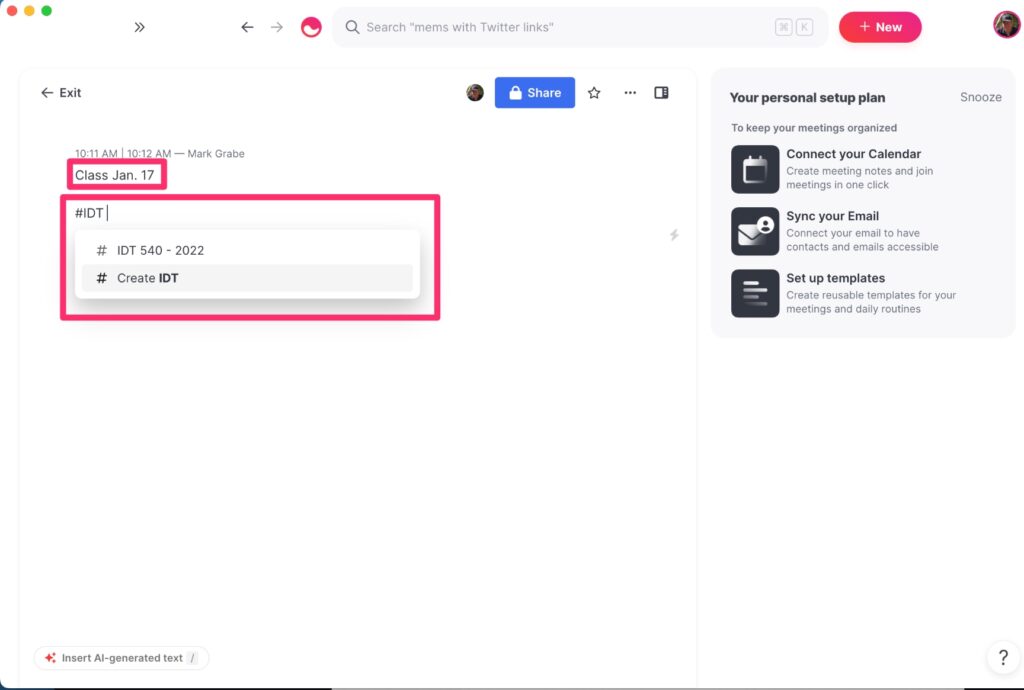
Mem does not rely on a hierarchical storage approach which most tech users might imagine as a hierarchical system of folders. Because the notes taken for a given course needs some efficient way to differentiate the notes for that course, the mechanism I describe in Mem takes advantage of tags. Mem uses what is called markdown to add capabilities to raw text (like the tags in HTML). For tags, the markdown symbol is #. My example is set up for IDT 540 which is a course I teach, so I am using #IDT 540 – 2022 as my tag for the notes for this course. One nice feature of Mem is that it begins to offer suggestions as soon as it can guess what tag you may be entering (this is what you see below). You can enter tags at any location on a Mem “note”. Mem also treats the first text on a note as a label or title so I don’t want the tag at the very top. At the top I enter a title that is appropriate for the notes from a specific date. There is no reason only one note could be generated for a date. It might be more effective to focus on topics covered and differentiate the notes taken on a given day with some addition to the title text.

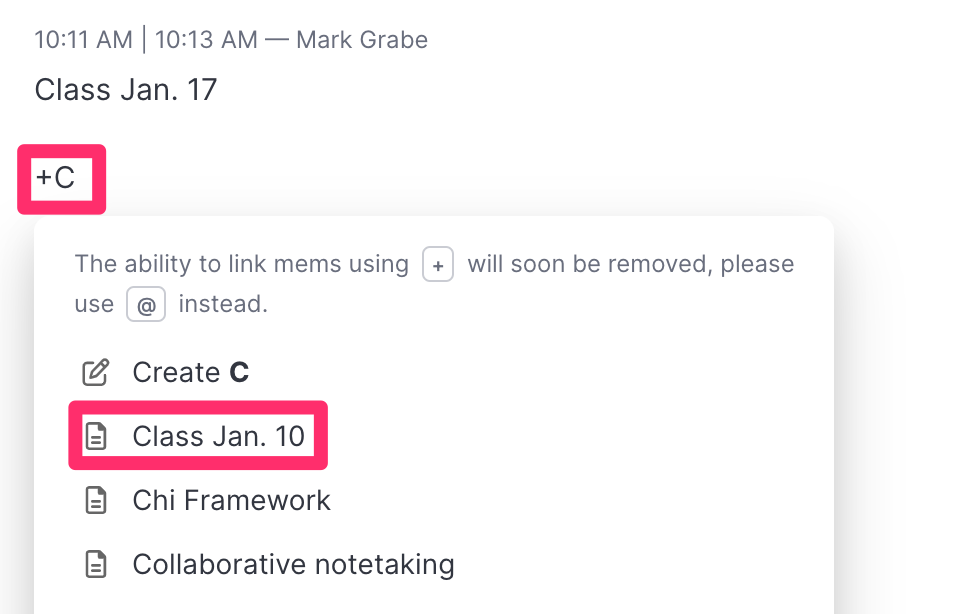
Here is the other adaptation it is useful to make to a Mem note. A learner will eventually want to “page” through their notes for study. The easiest way to do this is to link notes from adjacent classes. Notes can be found in other ways using search, but this is a handy technique that does not depend on search. Internal links in Mem use + as the markdown indicator for a link. Enter the + and begin entering the title for the preceding or following day’s note and the dates of notes will appear (again this is the anticipation text entry feature) and select the appropriate target or enter the entire title if none appears.

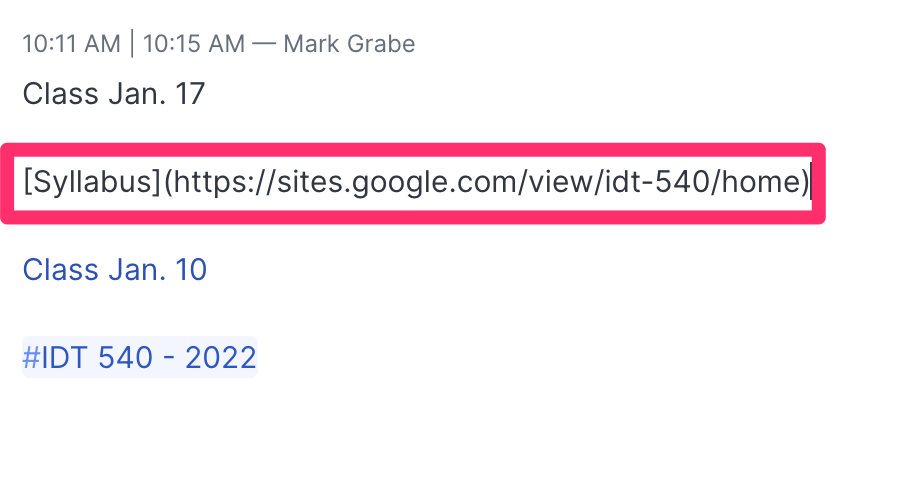
One more markdown technique that may be useful. For external links, the format is [text](URL). So, to link to the online syllabus for this course, I use the Syllabus for the text and the URL for the Google Site for my syllabus.

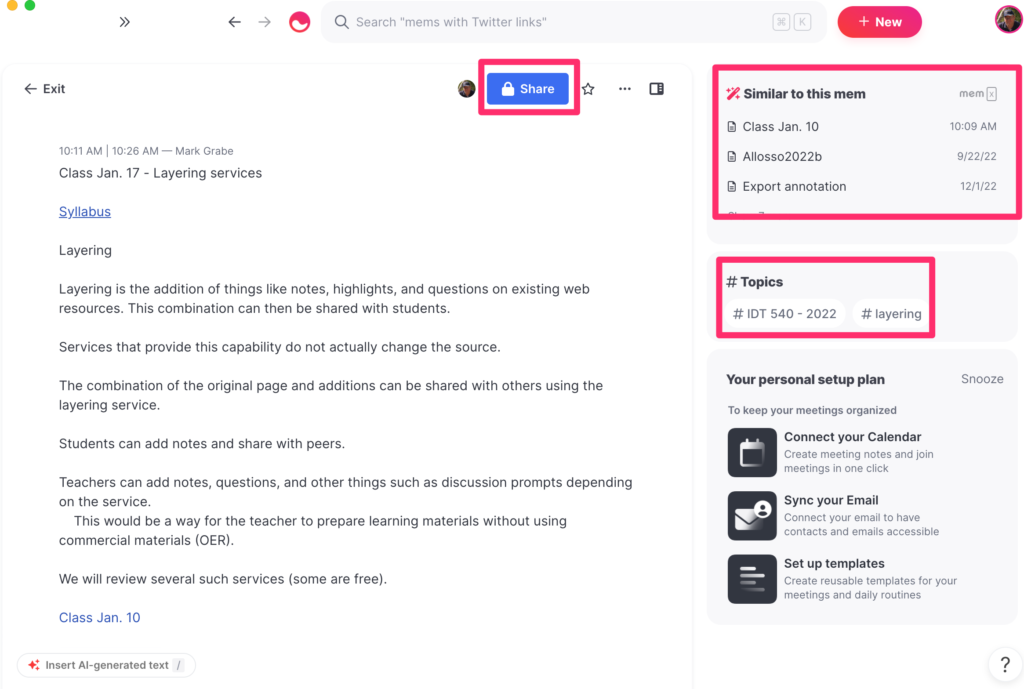
These three techniques should take care of the basics of taking notes. The screen view while taking notes is shown below. You should be able to identify the title, the link to the syllabus, and the internal link to the other existing note at the end. Other features on the screen include the button to control the sharing of notes and similar notes Mem has found among those I have stored (the system is using information in the present note to find related information in other notes).

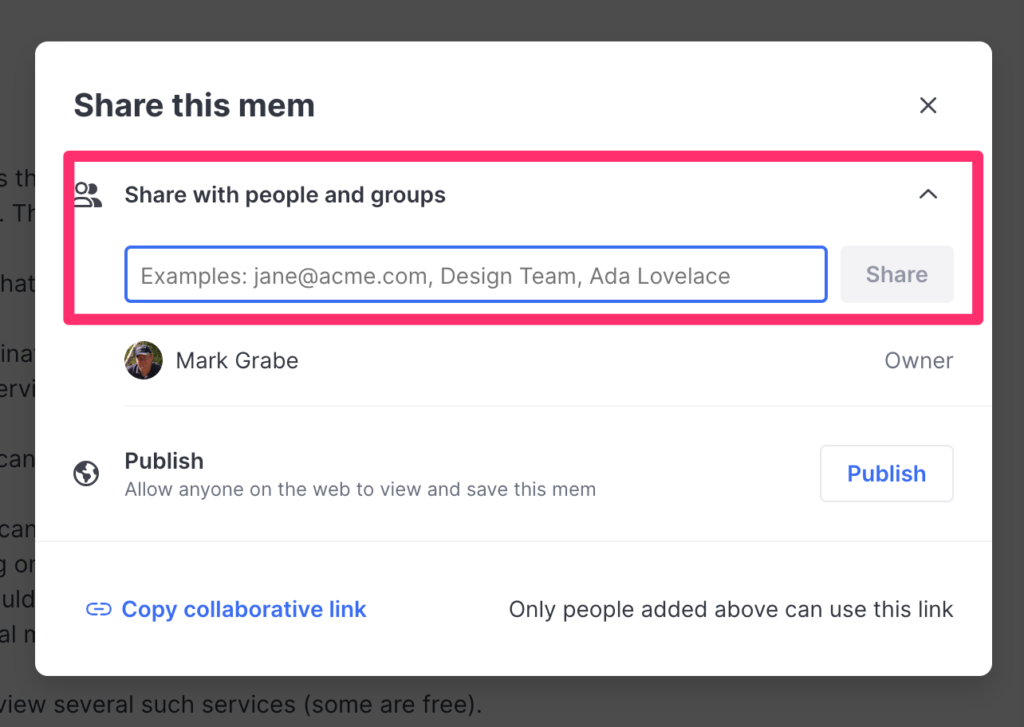
The share feature could be useful if the teacher or student peers wanted to share notes. The previous image identified the share button that brings up the following window. Once you have identified other users or teams of users you share by entering the identity of the user or the team. You can also identify a share target using their email address. There are lots of interesting applications for sharing notes and Mem makes sharing easy among users.

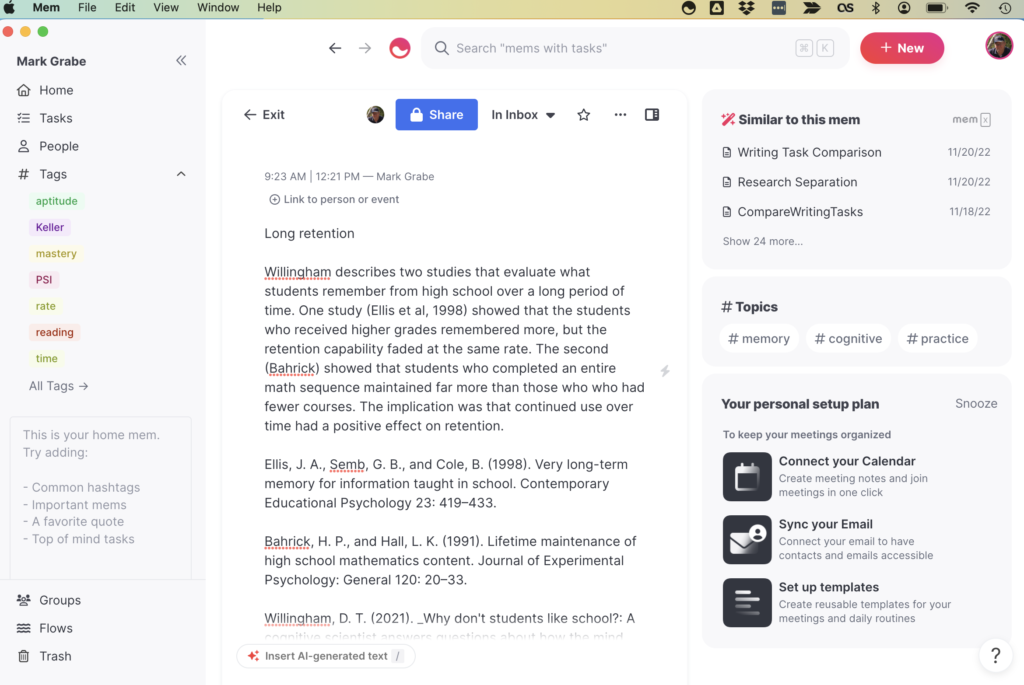
This is the Mem home screen. I include it as a reminder that Mem has been designed as a location for all your notes over an extended period of time (i.e., years). Using Mem or a single course during that course would just scratch the surface of the power of this service. A couple of things to note from this image. The tags are displayed in the left-hand column. Most popular tags are visible and there is a link to all tags. The new note button appears in the upper right-hand corner.

Taking notes in this system is easy and requires only a couple of new techniques. The free version is the way to get started. Copying text from another existing note-taking approach (word processing document) would allow students to easily transition to using Mem “live” in their classes.

The link in the first couple of paragraphs to the Mem blog provides some other suggestions.

One more thing. Taking notes often benefits from including images or sketches. Mem note can include images. If the instructor provides access to her lecture slides, you can screen capture the parts of a slide you think would be helpful and then drag the image file onto a Mem note.

Loading

Generative Hierarchy

I happened on this Medium post describing what the author called the Explanation Effect. The article itself was about strategies we can apply to learn and understand and the explanation effect sounded very similar to what I have previously described as Teaching to Learn. Teaching and even preparing to teach are great generative learning activities as most teachers will tell you. You must understand something to teach it well. The explanation effect implies more than the one-way act of teaching others and might be more accurately described as an educated discussion in which the parties involved share and perhaps even argue about something. Hence there is an exchange of information, accurate or not, about something. The Medium post argued this type of experience is one of the best ways to learn.

Generative learning activities have always been a personal fascination and the explanation effect would be an example. It is an example of an activity in which engagement in an external activity provides a likely way to manipulate important cognitive behaviors involved in retention and understanding. Many of the behaviors learners engage in as study activities are intended as generative activities.

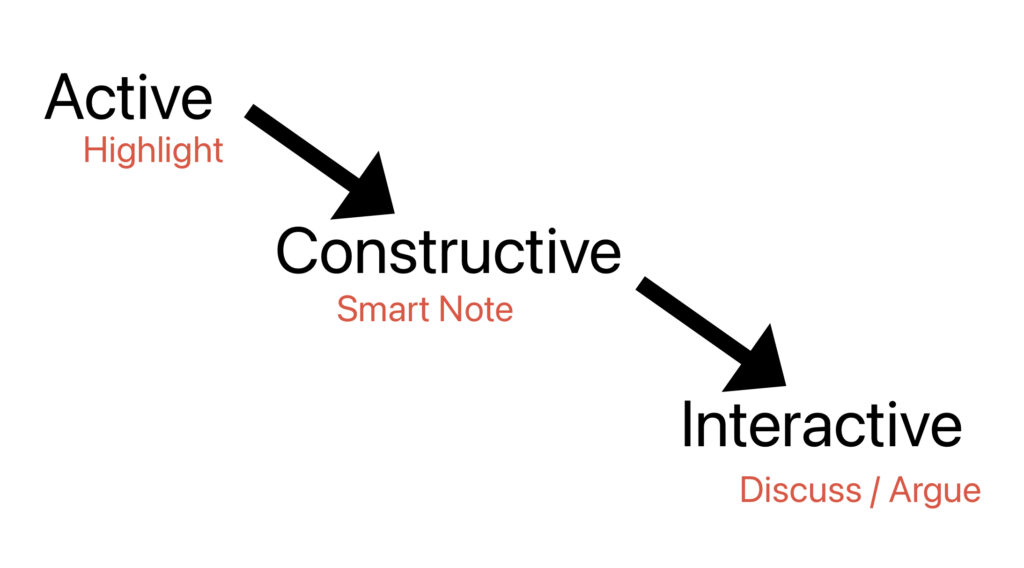
To understand why engaging in tutoring (as a learner) or peer teaching (both parties are really learners) is proposed as a superior generative activity, it might be helpful to consider a hierarchical framework of generative activities proposed by Chi (citation included at end of this post). In this hierarchical framework, higher-level activities integrate lower-level activities and as one advances through the hierarchy it is proposed that activities at that level are more productive. In the following image, I have identified the stages of this framework and added an example of each level I assume would be familiar to most educators.

Smart notes require that a learner summarize and extend an input with personal insights or examples. So, a student might highlight a concept in a textbook (active) and then construct a note that summarizes what was highlighted as the learner understands it based on existing knowledge and perhaps include an example. Hence, additional cognitive activities would be included in the construction of a note. It is important to recognize that an activity (e.g., creating a note) may or may not involve productive cognitive behaviors (e.g., copying the text into a notebook) or may involve other cognitive activities leading to even more enhanced understanding and application. As an educational device, external activities are assigned with the expectation that the use of the activity will be productive, but the cognitive connections are always under the control of the learner.

I like to describe interactive activities as involving secondary inputs. If students discuss or argue about concepts from a book, the information in the book is the original input, but the comments from a peer or a tutor are a second input. The second input may add something new for the learner to add to an existing understanding or challenge the understanding the student has originally generated and now force a reconsideration and possible modification.

Chi and others have engaged in research to justify the proposed advantages I have described here. When researchers offer insights that hopefully will influence practice, the impact tends to depend on how practitioners translate general recommendations and how practical it seems it would be to come up with activities matched to these insights. I think educators understand practices such as guided discussion or issue debates and I hope the way in which I have explained the benefits of seeking activities at the constructive and interactive levels of Chi’s framework is persuasive

Chi, M. T. (2009). Active?constructive?interactive: A conceptual framework for differentiating learning activities. Topics in cognitive science, 1(1), 73-105.

Chi, M. T., & Wylie, R. (2014). The ICAP framework: Linking cognitive engagement to active learning outcomes. Educational psychologist, 49(4), 219-243.

Loading

Instructional responsibility and independent learning skills

I started posting about student highlighting, note-taking, and annotation as part of my observation that reading with a digital device offers some lifetime advantages over reading paper resources. The issue of comprehension vs. paper is only the initial stage of reading and the opportunities for layering personal comments on primary sources, the storage and organization of these comments, and the retrieval of these comments offers advantages for studying and written projects based on ideas from multiple sources. 

Once you begin exploring digital annotations and note-taking you can move into many different subtopics. For educators, any claims related to digital annotation and related activities (note-taking, highlighting) would typically involve short-term student uses of these skills (e.g., preparing for an exam, generating a multi-source written product). 

There are many investigations and analyses related to these ends. If I were to recommend a single source relevant to this topic it would be one that is a couple of decades old. It is also a study conducted with college students. Simpson and Nist made several key points in their introduction that I believe continue to be of great importance. Even though and perhaps because they worked with college learners, I think their most important observation was that treatments that involve a skill such as highlighting or annotation require the assurance that learners applying these study strategies do so effectively. They raise the same argument I have made multiple times. Have learners ever received guidance in how they should go about learning strategies such as highlighting and annotation? If those investigating study techniques in college learners are concerned with what is often called treatment fidelity, a similar concern should be raised when conducting annotation, highlighting and pretty much any study strategy with younger learners. 

The Simpson and Nist study developed over a three-week period of time using the type of content college students would encounter in their classes (I.e., extended period of time and authentic content). Students were exposed to sample annotated materials, provided examples of specific types of annotations (e.g., summaries, questions of understanding, potential examples), and offered samples of their attempts at annotation for review by peers and the instructor. The comparison of multiple choice questions responses covering each target source involved the treatment group and a group asked to study and generate possible exam questions. The annotation group demonstrated a significant advantage on the MC exams.

This study made use of paper source material, but offers a realistic example of what it takes to apply the treatment strategies in a way that generates an advantage. It cannot be assumed that common study techniques such as highlighting or annotation are applied in a cognitively generative way even though some within a peer group use such strategies. It is very possible students have never been involved in a conversation focused on the use of such strategies or practiced them under supervision, Students read and write in most classes, but responsibility for developing proficiency in such skills in secondary and lower-level college classes may be one of those things assumed to be someone else’s job.

Simpson, M. L., & Nist, S. L. (1990). Textbook annotation: An effective and efficient study strategy for college students. _Journal of Reading_, _34_(2), 122-129.

Loading

Preserving context in digital writing

Some knowledge workers (writers) offer descriptions of their writing process using titles such as “How I work”. The benefit, I assume, is to provide others insights regarding the flow or process used by the author that might result in a beneficial adjustment to the reader’s own activity. I will begin by offering a general overview of the process I use and then will explain how the system works when I write based on a specific type of source material. 

At the general level, I imagine what I am trying to do is to create bi-directional linkages between products. Those products include the original source material, stand-alone notes, and my original document that is intended to be shared with others. One additional goal in this process is important. I want to create sources in the process of writing that have value to me over time and not just for one project. By this, I mean I want the notes and original sources to be processed in such a way that I can easily use them to locate relevant information and to be more efficient to use for future projects. I make use of digital tools and digital information sources to achieve these goals.

Context

One concept that has proven useful in how I have come to think about and describe my workflow is that of context. The bi-directional linkages between products I have generated are constructed to maintain context. So, the original sources are highlighted and annotated when they are read. The highlights and notes exist within the context of the original sources.  Some of these notes and highlights are extracted from these original sources to generate smart notes using a different digital tool. However, this extraction process includes links back to the original sources to maintain context. So, at a later point in time, the link associated with a smart note can be used to return to the original document and the location within this document associated with a smart note.

By the way, the definition of a smart note is an idea that is understandable on its own. So these notes which were created based on information obtained elsewhere are written so that they do not require the original source for understanding. This stand-alone capability does not mean that reviewing such notes at a later time would not prompt a return to the original source perhaps for additional information or clarification. This review can be useful. Finally, I use the Smart notes typically generated from multiple original sources to write a product (typically a blog post at this stage of my career). 

Thinking about the sequence of written sources is kind of interesting. As one moves through the sequence, there is less reliance on the context of the previous source and a greater focus on my own interpretation and speculation. 

Example – pdfs as sources

Much of what I write is based on journal articles that I have access to as pdfs downloaded from my library. I work within an Apple environment and I make use of iCloud as online storage I can access from my iPad and desktop computer. Because of the time invested in accumulating many annotated pdfs and other products over time, the use of iCloud provides me some measure of security for the products I generate. I do create backups for added security.

I first read the source pdfs using a digital tool. I have used Zotero, but I prefer a product specific to Apple called Highlights because it is less complicated to use and just seems more consistent. I mostly highlight while I read, but I also annotate when I know I want to create a Smart note from what I am reading.

Highlighting and annotation are processes that involve context as both processes connect a personal addition at a specific location within the source text. Both Zotero and Highlights allow highlights and notes to be exported as a file separate from the original pdf. There are options for the format in which this file is created and one is markdown. A markdown file is a text file that includes a few reserved text symbols that allow the content of the file to appear with headings and subheadings, links, tags, and other such features when opened with a tool that interprets the reserved markdown symbols. Markdown uses such symbols in a way similar to the symbols used in an HTML file. One of the core benefits of a markdown text file is that it will not eventually age out of usefulness. It is a text file and not a proprietary format so there will always be a way to open a markdown file and one does not have to worry about investing years in a tool that creates a file type that may not be useful if the tool is discontinued. 

You get an idea of how Highlight works from the following image. The left-hand window shows the original pdf that has been highlighted. The highlights and notes that are added also appear in the right-hand panel and it is the content from this panel that is exported. The drop-down menu shows the various formats that can be used for export and you should find markdown near the top.

I use Obsidian to store the notes I create. Obsidian is a tool intended for organizing, cross-referencing, and tagging a large collection of notes for an extended period of time. It is a versatile tool, but I use it for storing citations and Smart notes. Obsidian works with markdown files and the content exported from Zotero or Highlights can be imported, manipulated, and stored in Obsidian. 

Here is the useful capability I take advantage of when using these tools on my desktop computer. Having everything on the same machine is essential. Both Zotero and Highlights embed information about the location of highlights and notes within the original document. So, when a note is stored in Obsidian exported from one of these highlighting and annotation tools, a link will be included that will allow the Obsidian user to Zotero or Highlights and show the original text in which the highlight or note was embedded. Zotero is more specific and takes you to the exact location. Highlights takes you to the page rather than the specific location on the page.

So, this is what a section of markdown might look like for a note (this from Highlights). 

#### [Page 248](highlights://chen2021#page=4)

> After class, students should review the notes to clarify any

> unclear ideas. During this stage, the students can compare their

> own notes to the textbooks or the notes of other students,

> retrieve the key ideas, concepts or items from the notes as

> recall clues, as well as summarize the content of the notes.

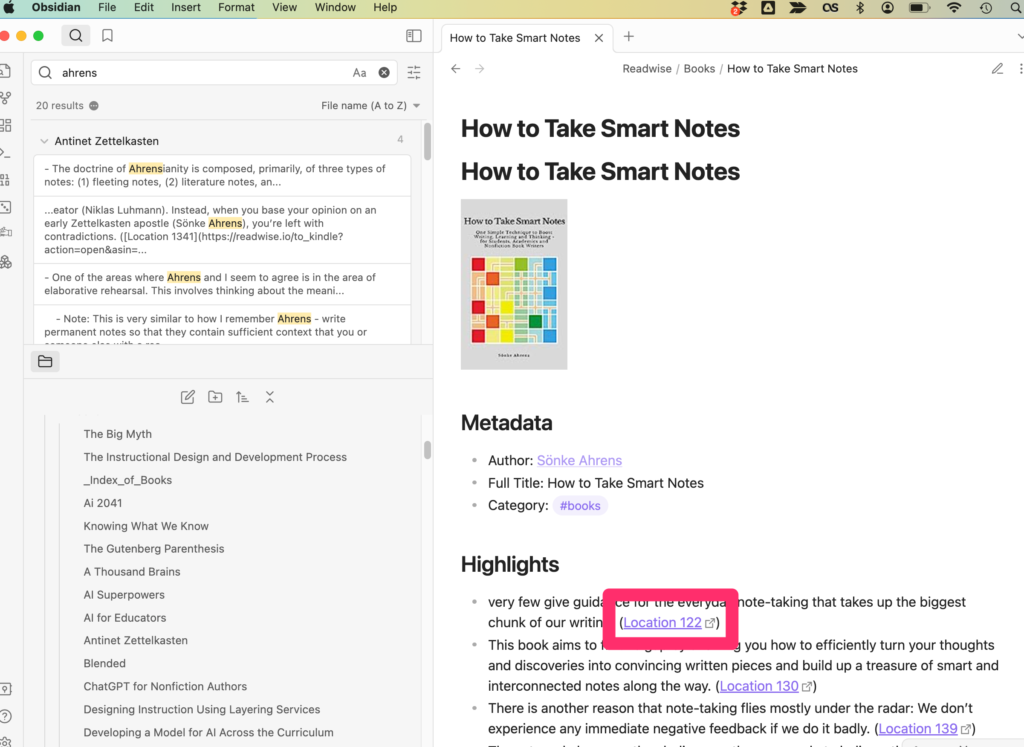
When displayed in Obsidian, the note looks like this (see following image). If you look closely, you will see the link to the original pdf stored on my computer (and in iCloud). I typically add some additional information to my Obsidian notes (perhaps the full citation associated with a note). The second image below is more what of my Smart Note looks like. In this image, you can see I have added a tag (#contextualization) that serves several functions including allowing me to find other notes tagged in the same way. 

As I write something like this blog post, I use mostly the notes I have saved in Obsidian. If I am using a specific source, I will include the citation for this source at the conclusion of a post and this citation would also allow me to work back through the sequence of products I have described to review both notes and locate the original document. 

Loading