I started using Google Docs to backup documents I prepared on my desktop. I eventually found writing in Google docs more convenient than writing on my own computers. I guess “computers” is the key here. I work from at least three machines daily and it is just so easy to login to one remote location and begin working.
Once I have invested several hours in a project, I begin to worry about backups. I trust Google with my files, but it is reassuring to have a second copy offsite (in this case on my desktop hard drive). Google now lets you zip up to two gigabytes of content and download in a single operation. Select the files (perhaps all of your files) and then the export option (available under more options). The process may take some time, but you can ask Google to notify you when the entire process is done.
I have prepared a simple demo if you need more information.
I have been thinking about the digital native / digital immigrant distinction and what about this dichotomy is assumed to be meaningful. As I understand the distinction, the difference is whether one has known “life without”. So if you were unaware of the world around you without Google, cell phones, or computers, you are a native. And, if you can remember punch cards or punch tape, coding in assembly, or waiting for your batch job to be run, you must be an immigrant. Actually, I am being a bit facetious. If you were alive and cognizant before the Internet, computers, cell phones, etc., you come to these devices and services unnaturally and are an immigrant.
It is kind of unclear whether this distinction is about positive or negative differences. Or, perhaps the the distinction proposes a combination of differences. As a distinction proposed as relevant to educators, how this difference is understood really matters. Unless we are assuming that all differences are positive, I reject the notion that educational practices MUST be adapted to suit the interests and aptitudes of natives. When a difference is negative, I think the appropriate response is to determine whether the capability can be developed or not, and if change is possible focus on improvement.
The simplistic distinction of “did you experience life without” misses many significant qualifications. If you have been there from the beginning, you have several important “context advantages”. You better understand how things work. Some think you do not have to know. For example, I do not have to understand fuel injection to drive a car. True enough. But, I do think having a broad background has advantages. I remember attempting to explain HTML tags to educators who seemed to be baffled by the notion of a “markup language”. I realized that my background offered a perspective they did not have. I did markup on a key punch machine when I wrote my dissertation. I was familiar with markup because I remembered word processing programs in which the markup would appear (bold, underline) as part of the text. Adding tags around text was not foreign in this new setting. It was part of using technology.
I think there is a more important aspect of context and that involves technology within culture. If one experiences the gradual integration of technology in various forms, one also can observe how we all have accommodated such tools into our lives. We have a sense of the inter-relationship between human behavior and technology. Often, we see trends that result in unanticipated negative consequences. I do not assume that sitting each evening staring at a big screen is the way life has to be. It does not seem rebellious to me that some young parents are concerned that their children need some alternatives. I understand that there are options. I understand such options as a native not as an immigrant. I do not have to learn about such alternatives to understand.
So, in keeping with this perspective, I offer some new phrases to describe the awareness of digital natives. If you want, I am collecting other descriptive phrases. My present list includes:
Late to the party
Better late than never
This is all magic to me.
I sometimes complain that pundits and keynoters receive too much blog attention and researchers too little. Since the researchers I follow seldom seem to blog, perhaps I should post in support of their activity.
So much attention has been focused on the quality of online resources and the skills necessary to critically evaluate these resources as a literacy component of 21st Century functioning that one might think this area would have generated considerable research activity. There seem to be plenty of recommendations for practice, but little formal assessment of skill or of the success of interventions.
The recent AERJ article by Wiley and colleagues (citation at end of post) describes an interesting study I feel both evaluates the value of commonly suggested practices for evaluating web sites (e.g., identify the page author and possible motive for offering the information) in terms of whether students (college students in this case) learn to apply such skills and whether the development of such skills influence how students then go about completing an online inquiry task. I thought the procedure used in the study was creative – basically offer students a fabricated Google results page based on a given search phrase and have participants evaluate the various links. Social psychologists and other researchers often employ deception in their research. The research demonstrated that more specific guidance and a more active evaluation task resulted in improved performance on a second site evaluation task AND the use of higher quality information in an inquiry task.
This study needs to be replicated with younger learners.
BTW – the methodology is similar (evaluate a set of sites addressing a given topic) to that proposed on the Beck “Good, bad and ugly” site.
Wiley, J., Goldman, S.R., Graesser, A.C., Sanchez, C.A., Ash, I.K. & Hemmerich, J.A. (2009). Source evaluation, comprehension, and learning in Internet science inquiry tasks. American Educational Research Journal, 46, 1060-1106.
I owe Wesley Fryer for the heads up on this Snow Leopard capability. He was blogging a presentation by Maria Henderson.
Snow Leopard has some interesting capabilities that are not obvious unless you read the manual (or happen across an interesting blog post). It turns out that the lowly Preview program has some hidden capabilities. Preview is a little difficult to describe. It is available as part of the basic install and opens pdfs and image files. I can’t say I really ever thought much about what it was good for. Preview has a feature that allows text to speech conversion (the resulting file is stored in iTunes as “Spoken Text”. You have to “activate” the capability which you do within the “services preferences” of Preview (look under the Preview heading for Service Preferences and then select Add to iTunes as a Spoken Track).
The only way I think you can access text in Preview is by using the program to open a pdf. I created a pdf from a small section of a word processing document I had available. You drag text to select and then right click on the selected portion. This should reveal options which include “Add to iTunes as a Spoken Track”. The selected text is converted and quickly available. Finding the Spoken Text content in iTunes is a little tricky – look for a spoken text playlist.
I converted in iTunes to MP3 so I could incorporate an example here (I thought the original in iTunes sounded much better). I also translated the entire document which generated a file that takes 45 minutes to play. So, the length is not an issue.
What I am thinking is that this process would be a great way to generate audio. It really is easy to implement once you figure it out. Cindy is working on a project for second language learners and this would seem a potential way to convert local materials. I wonder if there is a literature on the usefulness of computer generated speech in such situations.
Sad news tonight. Bunny is gone. Olive took bunny on a trip to Colorado and lost him in the Minneapolis airport. Despite the efforts of those boarding the flight to Denver bunny could not be found.
Bye, bye bunny – we all miss you. Thanks for being a friend.
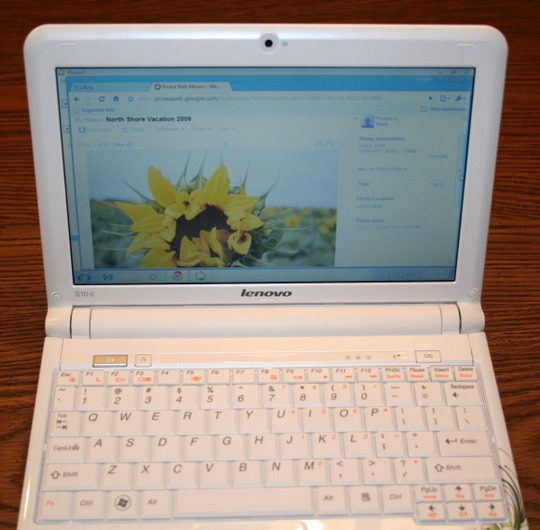
Cindy bought me a new netbook for my birthday. As is our custom, I actually picked it out and I am using it a week before my birthday. Not that romantic, but quite practical.
This is a Lenovo S10-2 with one gb ram and a 160 gb hard drive. It is presently running Windows 7 Starter (not sure what that means). I purchased it for $350 from Amazon (I mean my wife purchased it).
One of the university tech guys was in the department working on machines for a couple of my colleagues. We give each other some grief because I work on Macs and he only services Windows machines. Each time he shows up I ask if there is another problem with a Windows machine. Today I proudly announced that I had purchased a netbook and I was going to be running Windows. Attempting to be helpful, he asked what kind of machine, what amount of ram, etc. When I said I had one gb of ram, he told me this was seriously underpowered. I told him that I wanted the experience of running a machine schools might purchase for k-12 1:1 initiatives (which was true) and not to worry I also owned several real computers should I need more power.
This is actually take 2 of my netbook exploration. Take one did not work out well. My first experiment was refurbished machine I purchased for $150 and it simply stopped working. No hard drive and it was like the flash memory had nothing on it and I could not install another operating system. This time it is Windows 7 because I have heard good things (really) and I (Cindy) spent a little more money. Now we will see if I can do real work.
Setup was simple (I tried to ignore all of the free stuff I would eventually have to pay for). I downloaded Chrome and Picasa. Offloaded the image from my camera, edited in Picnik and posted successfully to my blog. So far so good. OS works fine. You do quickly discover that online services waste lots of screen space when you use them on a 10.2 inch screen.
My free time until Dec. 1 is going to have to be focused on a writing project and this focus will likely limit my blogging productivity. We are working on a new model for our book and the company wants some samples to help reviewers understand our proposal. I would rather just sign a contract, but I understand the expectation.
I am interested in how others use technology to work on complicated projects. Perhaps others might be interested in my approach. I think in terms of phases (which overlap). I am presently in the exploration and theme generation stage. This phase requires that I explore a lot of material (online and from print/pdf sources), store notes related to this material in a way that allows search and review, and then integrate these notes in a way that is closer to something I might write for others.
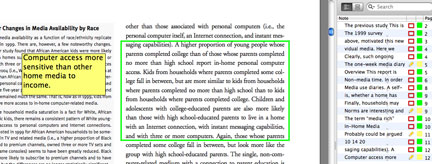
The tools I use for this process include Yep, Skim, Evernote, Google docs, Google Scholar and Diigo. Yep is software for storing, organizing, and tagging. I can download pdfs of most journal articles and pdfs from web sites. I use Skim to review this material because it allows the highlighting and annotation of even protected pdfs. I think of the process as overlaying the pdf content with my highlights or notes. If Skim can access the text, I can export my highlighted content and personal notes. If this is not possible, I manually review my highlights and take notes to Google docs. A screen capture of Skim in action appears below. I can use Evernote to screen capture content from any source and tag this content. I tend to use Evernote when I want to store Tables or Images. I tag this content and note the source so that I can refer to this material in later stages of my exploration and writing. Diigo is used to organize, highlight, and annotate web content I explore.
If what we are working on results in a contract, we hope to share this workflow more openly.
Manage Consent
To provide the best experiences, we use technologies like cookies to store and/or access device information. Consenting to these technologies will allow us to process data such as browsing behavior or unique IDs on this site. Not consenting or withdrawing consent, may adversely affect certain features and functions.
Functional
Always active
The technical storage or access is strictly necessary for the legitimate purpose of enabling the use of a specific service explicitly requested by the subscriber or user, or for the sole purpose of carrying out the transmission of a communication over an electronic communications network.
Preferences
The technical storage or access is necessary for the legitimate purpose of storing preferences that are not requested by the subscriber or user.
Statistics
The technical storage or access that is used exclusively for statistical purposes.The technical storage or access that is used exclusively for anonymous statistical purposes. Without a subpoena, voluntary compliance on the part of your Internet Service Provider, or additional records from a third party, information stored or retrieved for this purpose alone cannot usually be used to identify you.
Marketing
The technical storage or access is required to create user profiles to send advertising, or to track the user on a website or across several websites for similar marketing purposes.



You must be logged in to post a comment.