Notes on Kindle

I like to personally try things I write about. Really. I think it is important to have spent enough time with a product or service to understand the experience rather than to rely on the comments of others. I admit that I also like to explore new technology.

eBook readers have been one area of personal interest. There are plenty of hardware options. I started with the KindleApp for the iPod Touch. The app was cheap (free if I remember) and the books reasonable. The books I have purchased so far have been in the $10 range. The issue for me has really been the reading experience.

kindletouch

The visual experience of reading on the iPhone was acceptable. I found a font size that was good and read several books. Of course, the iPhone Touch screen is small and the display contains a limited amount of text. I do hope Apple comes out with a tablet or some handheld device with a little larger screen.

Recently, I have been exploring the experience on the Kindle. The reading experience on the Kindle is very good and seems superior to reading for long periods of time on a computer screen.

My reading habits require more than text display. I seem to read very little for enjoyment preferring to listen to audiobooks instead. I spend a great deal of time doing is reading nonfiction and professional content. In exploring ebook devices, it was not the hours of reading from a device that concerned me, but the other activities that are a part of professional reading – highlighting and note taking. Kindle does offer these features. In addition to allowing you to mark up the text and insert notes, these additions to the original text are stored on the Kindle as a separate text file. You can connect your Kindle to a computer via USB and drag this file to your desktop. I must admit I am not a big fan of the Kindle keyboard so adding my own notes was tedious. Highlighting worked fairly well. A sample from the text file appears below. Perhaps downloading this file frequently and expanding these notes from a more efficient keyboard might be the answer.
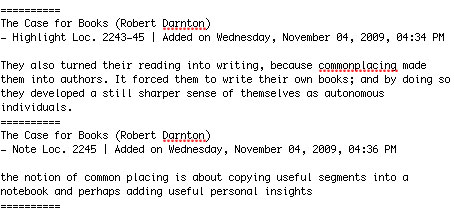
kindlenotes

Loading

Commonplacing

I have been reading Robert Darnton’s “The case for books” on Cindy’s Kindle (there is something quite ironic here, but now is not the time to explore). Tech types may immediately shy away, but Darnton has a very interesting history including working on the Google book digitization project and the commitment of Harvard to offer faculty publications in the public domain.

Anyway, The case for books is a wide ranging exploration of books, writing, authors, and reading. The historical perspective is cool. One concept I picked up is that of a Commonplace book. As I understand the concept, readers attempting to educate themselves would copy passages from various things they read into a notebook and would organize this material into categories and would include personal insights, comments and interpretations. These commonplace books sometimes ended up being published or a least saved as historical artifacts. The commonplace books of Milton, Bacon, etc. are historical treasures.

To me, this sounded very much like blogging –  a few personal insights, a few embellished posts focused on the works of others, etc., copied and rearranged (with tags). These activities representing a personal commitment to exploration and always the hope that the process will result in learning or a creative insight. I thought this association was likely new for educational bloggers and it may be, but the connection between blogging and commonplacing is far from original if one searches the web ( e.g, commonplacing on the WWW).

Loading

This is starting to make a little more sense

From the beginning, Twitter has had me somewhat befuddled. The 140 character limit seemed – well, limiting. I have settled into checking my feed a couple of times a day and I do pick up some useful links in this fashion.

The new “lists” feature sounded interesting and I immediately created a list, but again I was uncertain what to do next. TechCrunch explains a use of lists that would seem to have some potential. Generate a list likely to offer useful information and use the activity as a feed within another application. For demonstration purposes, I have inserted the feed from my “ParticipatoryWeb” list here. It would be more useful in the sidebar, but you get the idea.

Loading

Web publishing and authoring tools

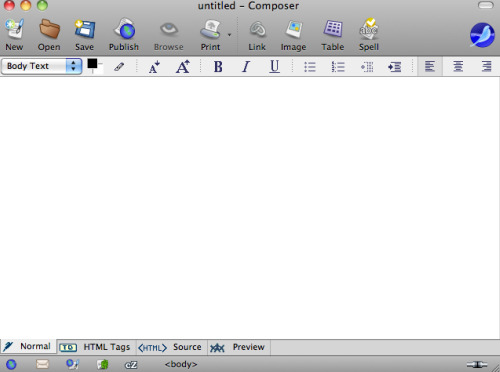
The Mozilla project just released Sea Monkey – the newest version of the integrated web suite from the open source provider. I am not aware of the origin of the name, but this product appears as the updated version of a product that has been around for some time. At one time I was a dedicated user because I liked the idea of a “suite” of applications and found the mail and composer applications to be especially valuable. I used to use the Composer application in classes because it was a free tool for “composing” web pages (see below).

seamonkey2009

BTW, this is a mature application with none of the clunkiness you sometimes see in open source projects. I am pleased to see this project advancing because it seems to fill a niche.

Spending some time exploring the new offering did reveal just how accustomed one becomes to the way a particular tool works. Sea Monkey will not accept the Diigo Toolbar which has become a natural part of my work flow when using Firefox. I think it has become fashionable to refer to this as an affordance – making something easy shapes our behavior. The Diigolet (a bookmarklet) does work so there is still a way to save Diigo bookmarks.

I liked Composer because it filled a niche. At the time the less expensive web authoring tools seemed to be disappearing (e.g., PageMill, HomePage) and it did not seem productive to expect educators to master Dreamweaver or GoLive (alas now gone as well). The world has changed. The less demanding end of the authoring continuum now seems focused on online tools (e.g, Google Sites) or desktop and template based software such as iWeb. My thinking about classroom applications has come to focus more and more on efficiency. The tool is not really the focus and the core question often ends up being how much time will it take in learning and applying a tool to accomplish an educational end.

Loading

Advancing Note Taking

I learned about Pear Note (from Useful Fruit) some weeks ago, but until today I had not had the opportunity to try it in a “real world” situation. Pear Note is intended to improve note taking. I tend to think of note taking as a practice related to educational activities, but it is a necessary activity for many professions. You watch/hear something and need to generate a record of that experience to combat the limitations of human memory. The problem is that we all make decisions of what we should record. The process of writing something down takes time and unless one knows short hand decisions have to be made. What we write, at least if you are a student, you should probably not record word for word what was said anyway. Paraphrasing or summarizing are generative processes and increase learning. However, these are also imperfect practices sometimes resulting in a failed record of what was actually said. Note, my interpretation may be very different from the way note taking is described on the Useful Fruit site. I conduct research on academic note taking. I think my analysis (actually based on what others have written before me) actually offers better selling points for Pear Note. How does one recover from less than perfect external storage when word for word recording is not the goal and typically impossible?

Anyway, I attended a conference on distance education today and listened to 5-6 hours of presentations. This offered a great opportunity to evaluate the product.

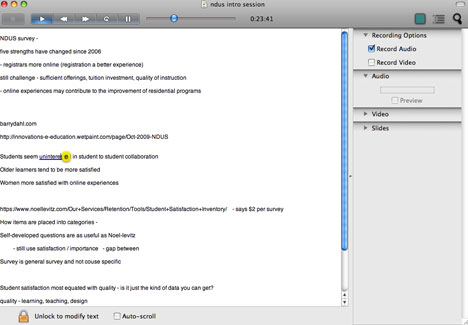
Pear Note synchronizes multiple inputs. The program records audio (and video) and what you enter from the keyboard. The cool thing is that these inputs are coordinated. If I am later reviewing my notes and something does not make sense, I can click on a location in my text and the recorded content will begin playing at a point in the corresponding audio that is 10 seconds earlier in the audio than the corresponding time at which the original text was entered. I know that was as a confusing explanation, but it is a difficult concept to explain. Think of audio being recorded on a time line and key strokes on the same time line – there is a correspondence between the audio and the individual keystrokes on this common time line. The consequence is that  I can listen to specific segments of audio in a very efficient fashion. I can locate the section of audio that correspond to the text I now find confusing.

peardemo

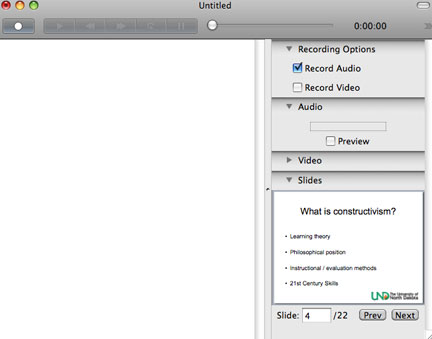
If you have access to PowerPoint or Keynote (I did forget – this is a Mac only product), you can load them into Pear Note. You then forward the slide corresponding to the presentation and the slides will also be coordinated.

pearslides

While you can review the product for free, it does cost $40. A reasonable investment if you use it frequently. I will warn you of a couple of things. Consider where the microphone is located on a laptop (not sure how this product would be useful in a desktop machine). The mike is directed toward you (the note taker). This means the audio may be a little weak. Our speakers today were working with an audio amplification system so the sound level was acceptable. The other issue with the placement of the mike is that you are entering text from the keyboard and at least with me this sound is fairly loud and close to the mike. This combination makes for a less than ideal outcome. I did not say unacceptable outcome. This is why I suggest you not purchase based on the description but download the demo and try it in a real world situation.

This is a pretty well thought out product. The limitations are more limitations of the hardware than the software itself.

Loading

PBS Teacher Activity Packs

I typically describe useful web sites I encounter on my other blog. However, this blog receives more attention and I wanted to make certain the resource I describe here is promoted.

PBS has organized some of its own resources and other supplemental materials as Activity Packs. The packs are organized by grade level and content categories. The packs are even available as a widget (see example below) that can be embedded in a class web page or promoted through social media (as I am trying to do here). Seems like a very useful way to offer resources to teachers.

Loading