I am doing much more of my “professional” reading on the iPad. In most cases, this means reading books using the Kindle app. Perhaps the most difficult thing in transitioning from paper to the iPad was finding a suitable substitute for the margin notes and highlighting I do with the paper version of a book. I am gradually becoming better at the highlight feature within the Kindle app – I seem to have trouble getting the iPad to designate the text I want to highlight.
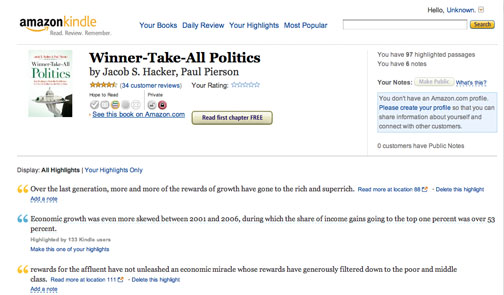
What I really like about the Kindle is the way in which I can download my notes and highlights. I am not certain how many people do this even if they take notes and highlight. The process works great, but in a little different way than most might expect. The content is actually located online (go to https://kindle.amazon.com/ and login using your Amazon account). Select the “Your Book” link near the top of the page and you should be able to view the highlights associated with each book you have read or are reading. You can copy and paste the notes from this site if you want.
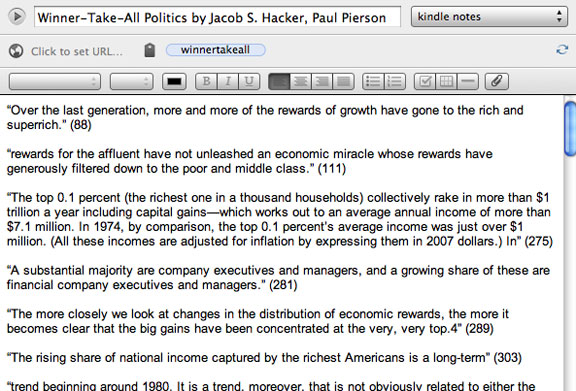
I happened to remember that the Savvy Technologist discussed this process from back in the day when I read books on a Kindle rather than a Kindle app. I did locate his post and discovered that it explained how to export highlights from the Amazon web site to Evernote. Sure enough it works. The digital nature of this content offers possibilities my highlights in a book cannot – I can now conveniently separate, store and search these notes.
The AERA conference offers us the opportunity to meet with our editor and to discuss issues related to our next book edition. Because we write about the use of technology in learning, we feel the need to push for a different kind of instructional content. We intend to generate a hybrid product that combines a scaled down book – we prefer to call it a Primer – and online resources. There are challenges in doing this. We are exploring what we think is the best way to offer content for our topic – the uses of technology in teaching and learning. However, separating content between a book and online can be tricky as it may appear the intent is to prevent resale of books. We certainly understand this issue as it applies to book resale, but what is the strategy when the online content is separated because some content really is not best experienced on the page.
The other issue we constantly encounter and we guess few consumers understand involves permissions. We all constantly encounter and may personally generate online instructional resources that involve screen captures or screencasts. YouTube, blogs, and web pages offer many resources containing such useful resources. The reality is that the screen captures and screencasts appearing within these resources are almost always used without permission and are a violation of copyright. When you purchase a commercial product the authors and developers cannot operate in this fashion. They must make the effort to secure permission to use the imagery. In our experience, payments have seldom been required, but the legal requirement requires time commitments from company personnel. Once you must involve lawyers, costs go up. So, to explain the situation in a simple way – it costs more to offer a resource that meets legal requirements. We intend to heavily focus our online resources on classroom examples and tutorials and so to offer what we believe to be most helpful we have the added burden of dealing with the issue of cost and permissions.
Paper Cranes for Japan is a project that provides students a way to make a contribution to the people of Japan. The Bezos Foundation has agreed to donate $2 to Japan for each origami crane students submit.
Cindy learned of this project through Twitter and contacted Pam Carlson who teaches 4th grade at Wilder School in Grand Forks. Cindy has spent time working in Japan and keeps in touch with several teachers and her interpreter. All were fine following the quake. Cindy was able to connect with Miyako who was her interpreter and arrange a Skype call with Pam’s class.
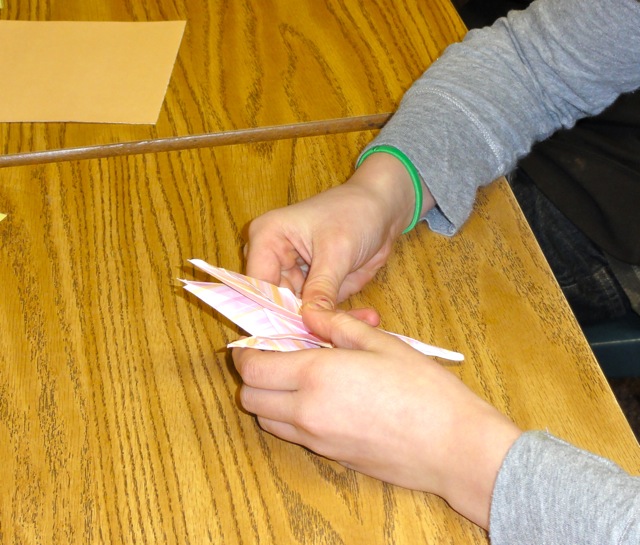
Folding cranes is no small feat and the students found the video on the Bezos site of greatest value in learning how to create the paper birds.
At last count, the class had created more than 100 cranes with more to come.
As promised, my NY Times app stopped providing access to articles I might find interesting. I supposedly have access to 20 articles a month, but this does not work through the iPad app which is the way I would prefer to organize my reading. Time to delete the app. I will likely identify some number of articles I want to read through other means and 20 will be plenty, but so much for a general scan of the Times. See this LifeHacker analysis if you want more access. I did receive a “take 25% off” offer today, but this is not what I am looking for.
I have been thinking about “business models”. The situation with the NY Times got me started. Then, it looked like Audible had canceled out 10 unpurchased books because I had not selected books by the end of the year (this turned out not to be the case although my iPad Audible app will not let me purchase books even though I have credits via a browser). The point is not that I am unwilling to spend money on online services (we did our taxes last night, between Lynda, MobileMe, and pro versions of half a dozen services I spend between $500 and $600 dollars a year on online access). The frustration is that the business model is often not suited to my personal interests. I do not want to spend $180 for full access to the Times. I want to spend $50 to read the content that interests me. I do not want to purchase 10 Audible books a year. I probably purchase 30+ books a year, but Audible is not focused on what I would describe as “professional content” and often books they have that interest me I want to read carefully and annotate so I buy for the Kindle App or purchase the paper version from Amazon. So, there is this mismatch between the models that are available which likely are great for some people and the model that would appeal to my specific interests. I want to use multiple services and multiple formats. The providers seem to want you to focus exclusively on what they offer.
Do not get me wrong – free is not the answer. I am in complete disagreement with those who propose that information wants to be free. However, I do think we need more flexible plans for purchasing access to content.
If you have the iPad app or access NY Times content in some other way, the free access is soon to end. I can’t say I blame the paper, but I do think their expectations are unrealistic. If I understand the model, I would now be expected to pay nearly $200 a year for access. Simply put, this is too much for my level of interest. This is not a knock on the quality of the content – I understand that original research and writing costs. I simply am not interested in most of the content or have options for similar material.
What will I be able to view? Quite a bit as it turns out (see description) –
Visitors can enjoy 20 free articles (including blog posts, slide shows, video and other multimedia features) each calendar month on NYTimes.com, as well as unrestricted access to browse the home page, section fronts, blog fronts and classifieds.
Your free, limited access resets every month: at the beginning of each calendar month, you’ll once again be able to view 20 free articles for that month.
Would I be will to pay? I would. What amount do I think would be appropriate for me? I would say $25-30 a year. Do I have a suggestion? How about a fee for individual sections (something like paying for the Sunday edition, but focused on areas). I look for education and technology content.
I think the next few months should be interesting as far as paid content goes and I hope the Times adds some additional options.
Google has improved the commenting system available in docs. You can now carry on a discussion with collaborators while working on a document. The feature should be available now, but you will not see it (red box in image shows the way to access the feature) unless you create a new document.
This would seem an effective way to leave comments an author might either implement by changing the document or respond to as part of what Google would like to call a discussion.
When we write about potential projects for the classroom, we typically like to use local examples from teachers we know. It seems a good strategy to assure practicality. Sometimes we have something in mind and simply cannot find an example. When this is the case we like to experiment with the tools and techniques ourselves. We learn a lot and have a sense of the options that would be available for teachers.
So, we have been thinking about the GPS as a way to “fit information to location” (just made that phrase up but I like the way it sounds). Geocaching would be a possible example but we wanted something a little new. Cindy came up with the idea of mapping local historical sites. I was going to map houses for sale in the neighborhood. I liked her idea better.
A little Internet research revealed that a list of sites, addresses and GPS coordinates already existed. This made the activity pretty easy – I had hoped I could find a list of locations by address and we could then find the GPS coordinates to see if we could map buildings to Google street view. I guess you would not have to give out the coordinates.
We located buildings using the maps available on our cell phones and with a Garmin Nuvi 1300 I received as a Christmas present. This Garmin can be used in a vehicle or on foot. The plan was to locate a building, switch to “where am I mode”, write down the coordinates, take a picture of the building and then put everything together once back home.
We learned something quite interested about the Nuvi by accident – it is capable of screen captures (also storing personal photos just in case anyone could possibly think of a reason for showing family photos on his or her GPS).
So, one of us would walk up to a building a record the coordinates by taking a screen shot.
We would take a picture of the building.
We would store the coordinates using the Garmin Nuvi.
Now, you can use the coordinates above to see how well this works. Enter 47 55.501 – 097 01.951 in Google maps (see this GPA converter to understand a little more about GPS coordinates).
I had to spin the street view around –
But there was the same building I had recorded with my own camera.
BTW – the link to buildings on the list of historic places also provides access to information about the history of building. I would certainly have students read this content and also take additional photos to represent features of the buildings identified in these descriptions.
According to the documentation included with the request to declare this building a landmark:
Architecturally, this building is an outstanding example in original condition of the turn-of-the-century brick commercial style with classical detailing. Although architectural plans could not be located, the building was most likely designed by John W. Ross or Joseph Bell DeRemer, both of whom were practicing in Grand Forks at the time and actively designing commercial buildings in this style.
We did test this system in a way that involved a little more risk taking. We drove 40 miles into the country using GPS coordinates searching for a round barn (#17 on the list of Grand Forks County sites). But, that is another story.
You must be logged in to post a comment.