Ubiquitous Computing (Continued)
Some feel that our concept of what a computer is may limit the forms of technology we apply to the goals of teaching and learning. Devices with CPUs (central processing units) are everywhere - in our cars, our home appliances, and our entertainment equipment. More practical questions may focus on what devices allow user control, access to some form of information, and for the domain of interest as we have defined it, what technologies allow communication with others via the Internet? The participatory web operates in two directions.
So, perhaps we should consider what other devices may exist that allow these functions and how practical it may be to apply these devices to learning and communication goals.
Smart Phones
One gets the impression that most students own a cell phone. A recent presentation by Rainie (2009) for the PEW Charitable Trust reports that 75% of teenagers are owners. For some, this "installed base" offers a place to begin and significant opportunities for voluntary activities. However, the 25% of teens who go without or are not allowed to own a phone would seem to argue against required participation. There is also the related question of what proportion of teen cell phone users have the type of plan that would allow many of the services that allow for full participatory web activity. For example, I use my Blackberry to upload images to Flickr, to tweet (microblog on Twitter), to search on Google, to view web sites, to get directions, etc. so the capabilities are certainly there. However, these opportunities require a data plan on top of the basic monthly fees that adds $30+. Our point is that there is an important difference between opportunities available to some students and what we assume most students could do. To conceptualize the present potential, it would seem useful to recognize multiple levels of participation - no access, time-limited access to limited features, unlimited access to limited features, and unlimited access to data capabilities.
We do not intend to pursue the development of a full "cell phone in education" section at the present time. If you are interested in this topic, some links you may find useful appear at the end of this section.
Other
We add this category because of one device - the iPod Touch. There are other devices, such as Amazon's Kindle, that are also difficult to categorize. We focus on the iPod Touch because it offers the opportunity to both review and produce online content. The Touch should probably be included as a type of netbook that relies on a touch screen keyboard. For some, the Touch is the wifi version of the iPhone which would then fall within our section on smart phones (while ignoring the wifi access alternative of the iPhone). We admit that we each own this device and describe it because we are familiar with the opportunities it offers from personal experience. It does appear that other similar devices will soon be available (and maybe already are if I have not reviewed this page recently to update my comments) and some readers may have their own suggestions for what additional devices offer educational opportunities.
While a small device, the Touch has a fully functioning web browser (Safari). You could, if you wanted, review this site using this small device.
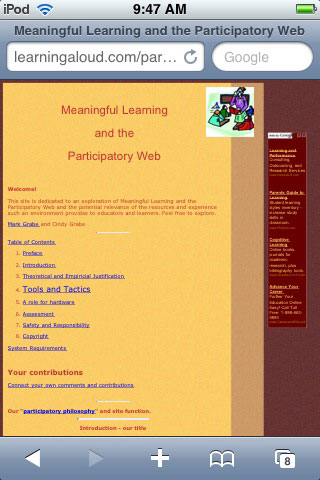
Amazon has also created a Kindle app (application) that allows viewing of Amazon's collection of ebooks primarily intended for the Kindle. Obviously the Touch has a small screen, but reading text from this screen is not difficult. Image the display of a paragraph or so at a time. With a sideways swipe of a finger, you move from page to page. I can say that I have read one full length book in this fashion just to see if I could. No real problems with eye strain or comprehension, but this would not be my preferred experience.

Finally, participatory web apps are available on the Touch. Again, what is possible and what seems practical will depend on individual reactions. I post Tweets (from an app) and I can tolerate the cramped keyboard for 140 characters. I enter short messages "so self" in other apps, but I have not written anything of any length.

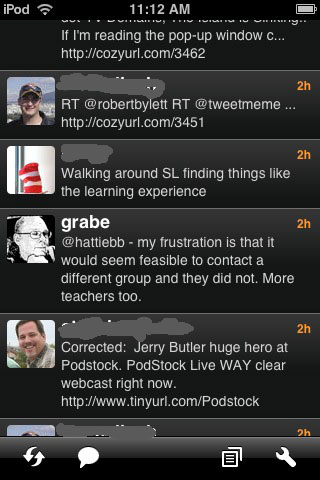
I know that those with an iPhone make use of the camera much in the same way I use my Blackberry.
The iPod Touch has sufficient functionality to benefit students. However, the issue again becomes that of cost and how to make the devices available. I am aware that at least one nursing program in my state in requiring the device of the nursing students and there are certainly a variety of apps (some in the medical field talk about "informatics" - Nursing link) that are useful to learners and as a convenient reference.
I am guessing in a year we will have more to say on this topic because:
a) devices will be a little bit (but not too much) larger,
b) more learning and participatory resources will be available, and
c) institutions, at least at the higher education level, will more strongly recommend or require that students have small device available in class and as they study.
The iPad
Early in 2010, Apple introduced a new type of device named the iPad. The device was designed to make use of finger touch in the manner of the iPod Touch but was considerably larger. It had the advantage of potentially linking to an external keyboard, but did not come with a keybord as part of the basic purchase. The original version made use of wifi, but a 3G (cell phone signal) version will soon be released (perhaps by the time you read this).
Whether the iPad actually represents a new category or not is a matter of opinion, but it does have a unique set of featuers and capabilities and will also likely soon be imitated. As is often the case with new forms of technology, educators have been intrigued. Some institutions of higher education have already committed to provide an iPad to entering students.
We have spent only a few days with the iPad, but have some initial reactions. One controversy associated with this device, especially among educators who are likely interested in the concept of the participatory web, is whether the iPad is more than a device for viewing information. In other words, can learners generate content for sharing online. First, in a way, the iPad has obvious advantages over ebook readers such as the Kindle which we have also reviewed because the iPad is far more flexible. It offers a superior experience in viewing web pages and online video. The experience in sending and receiving email, blogs, and microblogs (Twitter) is great. The issue for us at present concerns participatory services such as Google Docs. While the iPad browser (Safari) works well, the browser does not allow a user to create or modify docs. We have tried third party apps and have struggled with consistency. Sometimes the apps work and sometimes we have found the files end up corrupted. We assume as time passes such problems will be resolved.
Entering text from the screen keyboard is relatively proficient. I have found it as accurate as working on a netbook - both give some difficulty because of the size of the keyboard relative the size of my hands.
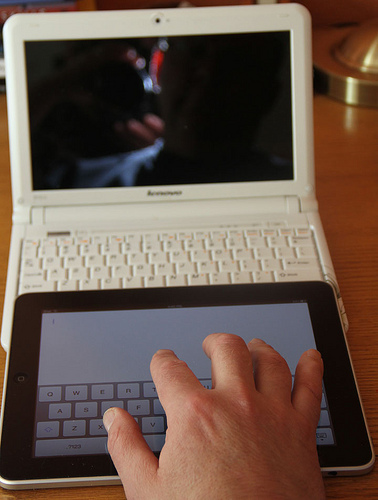
We will likely update this section soon. However, the interest in this new device has been very high and we wanted to offer some first impressions.
Chromebooks
The newest addition to mobile technology is the Chromebook. If you are familiar with the Chrome browser (a Chrome browser does not make the machine on which it resides a chromebook), imagine if that software was the only application on your computer. You could still get a lot done. A Chromebook uses what is described as the chrome OS (operating system) and relies on the Chrome browser. It typically has some flash memory (not a hard drive) and relies on online resources for productivity. Reduced hardware and software requirements typically mean chromebooks can be purchased at a much lower cost than laptop computers. Chromebooks have limited utility when an Internet connection is not available (consider the offline capabilities of the browser you use).
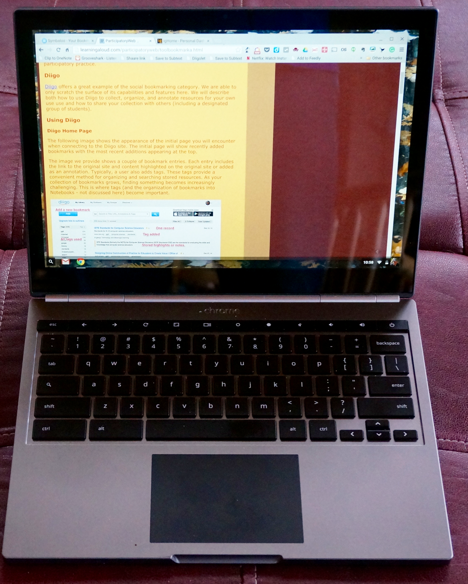
This is my Chromebook Pixel. It is among the most expensive chromebooks but it also has added capabilities - e.g., the screen is touch sensitive so touching a point on the screen with your finger has the same effect as clicking at that spot with the mouse. I now do much of my writing using this machine and Google docs. Chromebooks for schools would likely be less expensive in the $500-600 range.
Resources
Kolb, L. (2008). Toys to tools: Connecting student cell phones to education. Washingon, DC: ISTE.
Blog - Cell Phones In Learning